

8Reports
See how your store is doing: sales, best sellers, profit and more.
The reports page #
Sales → Reports shows how your store did over the period you choose, and how that compares with before. Sales count once an order is paid (fulfilled, completed and later refunded orders too), on the day it was paid.
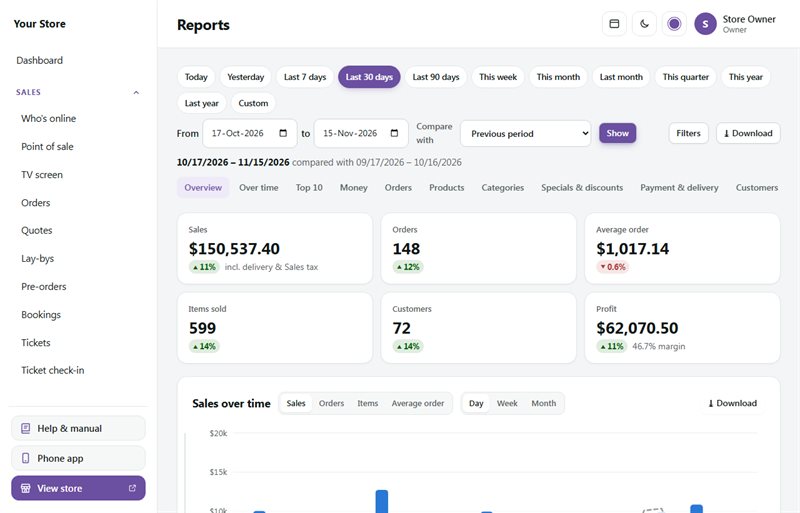
Choose the period
- Click a period at the top: Today, Yesterday, Last 7 days, Last 30 days, Last 90 days, This week, This month, Last month, This quarter, This year or Last year. Or type your own From and To dates (up to two years) and press Show.
- Compare with puts every figure next to the Previous period (the same number of days just before) or the Same period last year. Each figure then shows the change: green with ▲ when it went up, red with ▼ when it went down (for refunds, down is the good news). Point at a change to see the figure it is compared with.
Filters
Press Filters to look at part of your sales: one channel (online or point of sale), payment method, delivery option, region (your country's word for it, such as state, province or county), category, brand, product (type its name or SKU) or discount code. You only see choices your store has used. Press Apply filters: the whole report, and every download, then follows them. Each filter shows as a label under the period; click its × to take it off, or Clear filters for all of them.
With a category, brand or product filter, the report shows the orders that include those products. Items, products, categories and brands count only those products; money and order totals are for the whole orders.
Shortcut: click a name in Top 10 or in a list (a product, a category, a payment method and so on) to see the whole report for just that.
What the report shows
The menu under the period jumps to each part:
- Overview: sales (including delivery and tax), orders, average order, items sold, customers, and profit if your products have cost prices (otherwise money after refunds).
- Sales over time: a chart by day, week or month. Switch it to Orders, Items or Average order. Point at a bar (or click the chart and use the arrow keys) for its figures; with a comparison, the dashed line is the compare period.
- Top 10: your top 10 customers, products, categories, brands, payment methods, delivery options, regions and discount codes, each with a pie chart. Rank by Sales or by count (orders, units or uses). Point at a slice or a name to see its share. The pie shows the top eight in colour; the rest, numbers 9 and 10 included, is Everything else.
- Money in this period: products before discounts, discounts, delivery, total taken, tax (VAT, GST or sales tax, as your store calls it), turnover excluding tax, refunds (on the day they were refunded), money after refunds, and cost and profit for items with a cost price.
- Orders: items per order, refunds, customers who ordered more than once, and the orders placed in the period by status (paid or not).
- Busy days and hours: which days and times your orders come in. The darker the square, the busier.
- Best-selling products: units, sales, the change, and profit and margin where there is a cost price. Slow sellers: active products with stock that sold least, or nothing, with ideas to move them.
- Categories and Brands: sales of each. A product in two categories counts in both.
- Specials: each sale from Marketing → Sales & specials that ran in the period, what its products sold while it ran, and the money a day against the same number of days just before it.
- Discount codes, and Vouchers and loyalty (vouchers spent and bought, points earned and used) if you use them.
- Payment methods, Delivery options, your regions (headed with your country's word, such as States or Counties) and, with the point of sale, Online and in person.
- Customers: new customers (their first order) and returning ones, and the sales from each. Customers are counted by email address, so guests count too; walk-in sales without an email are left out.
Every chart has Show as table with the same figures.
Download and print
- Download at the top: the whole report as an Excel workbook (a sheet for each part) or a CSV, and for your accountant the Orders or Order lines (one row per item, with cost prices) as CSV or Excel.
- Each part has its own Download for Excel or CSV.
- Print or save as PDF (in the Download menus) prints the whole report or one part. In the print window, choose Save as PDF as the printer for a PDF.
Downloads follow the period, the comparison and the filters you chose, and each one is noted in the activity log. Seeing the report and downloading it needs the See sales figures permission.
Searches #
Your shop's search finds every word in any order, in product names, SKUs, brands, categories, options (colour, size) and descriptions, best match first. It forgives a typo ("sunglases" finds sunglasses, with Showing results for and a way back to the words as typed) and finds plurals and the start of a word. As shoppers type, a list under the search box suggests products, categories and brands; switch it off under Look and feel → Header → Show suggestions while typing.
Sales → Reports → Searches shows what shoppers searched for in the period you choose:
- Found nothing: searches that found no products. Add the product if you sell it, use the shoppers' word in its name or description, or add a word that means the same (below).
- Top searches: the most searched words, and how many products each found the last time. Click a search to see the results as a shopper does.
Only the words are kept, for 90 days: nothing about the shopper, and no search with an email address, a web address or a long number in it. Searches by robots and your staff aren't counted. Seeing the page needs See sales figures.
Words that mean the same, at the bottom of the page: one group per line, for example `specs = glasses = eyewear`. A search for any of them also finds products with the others. Use one word per entry (not phrases); plurals and capitals don't matter. Saving them needs Products, prices and bundles.
TV screen #
Sales → TV screen is a dark, full-screen view of today's sales for a TV in your shop window or office. It shows today's sales (counting up as orders come in), the number of orders, a bar towards your daily goal, how many shoppers are online, the latest orders (order number, amount and town only, never names), today's top 5 products and the last 7 days. It updates itself every 10 seconds. Press the full-screen button to fill the screen.
Open the settings (the cog at the top) to:
- Set a Daily sales goal (R). Leave it empty for no goal.
- Make a TV link: a secret link that shows the screen without signing in, for a smart TV or an old tablet. Anyone with the link can see your sales figures, so only open it on your own screens.
- Switch off the link, or Make a new link: screens using the old link stop updating.
Seeing the screen needs the See sales figures permission. Setting the goal and making links needs Store features and customer account settings.
Profit #
Add a cost price to your products (on each product, under Price & stock) and your dashboard can show what you earn:
- On the dashboard, press Customise, tick Profit and press Save layout.
- It shows your sales, cost of goods, profit and margin for the period, and which products earn you the most.
Orders remember the cost price at the time of sale, so changing a cost price later doesn't change past profit.
Exports #
Most lists have a CSV download for spreadsheets:
- Orders: on the order list (the orders you're viewing) and on the Reports page.
- Products: Export CSV on the product list.
- Stock: Export CSV under Inventory (and Import CSV to update stock in bulk).
- Price list: PDF or Excel under Catalogue → Price list.
Accounting: Xero, Sage, QuickBooks and your accountant #
Settings → Accounting gets your sales into your books. Anyone with See sales figures can open it and download exports. Connecting to Xero, Sage or QuickBooks needs Store setup.
Export for your accountant
No connection needed. Choose a File, the From and To dates, and press Download CSV:
- Xero (sales invoice import): Xero's own import layout. In Xero go to Business → Invoices → Import, choose the file, and pick Tax exclusive.
- Sage Accounting (customer invoices): for Sage, or to give to your accountant. Check the columns against your Sage import screen the first time.
- Plain CSV: for any other package or a spreadsheet.
- Payments and refunds (receipts): the money in and out: date, order, method (PayFast, Yoco, Ozow, EFT, cash and so on), payment reference and the gateway's fee where it reported one. Handy for matching your bank statement.
Each order is one invoice: the invoice number is the order number, and the date is the day it was paid. Every item is a line (unit price excluding VAT, the VAT and the total), and delivery, discounts and loyalty points are lines of their own. Refunds come as credit notes. VAT follows your setup: prices with or without VAT, no VAT if you aren't VAT-registered, and zero-rated exports. Only paid, fulfilled, completed and refunded orders are included.
Export settings lets you add a prefix to invoice numbers (like WEB-1042), change the credit note prefix, the Xero account codes and the tax rate names your package uses.
Connect to Xero, Sage or QuickBooks
Connected, the store sends each paid order as an invoice with its payment, and each refund as a credit note with the money paid back, a few minutes later. Nothing is sent twice. You connect one package at a time.
- Register a free app with Xero (developer.xero.com), Sage (Sage Developer Self Service) or Intuit for QuickBooks Online (developer.intuit.com). The page shows the steps, and the redirect address to paste in. Copy it exactly.
- Paste the app's Client ID and Client secret and press Save. The secret is stored encrypted.
- Press Connect to Xero (or Sage, or QuickBooks Online), sign in, and allow the store in.
- Choose your organisation (Xero) or business (Sage) if you have more than one. QuickBooks asks you to choose the company while you sign in.
- Choose the Sales account, the Bank account for payments, and which tax rates mean standard rate, zero-rated and no VAT. Optional: a separate account for delivery charges, and one for gift voucher payments. (QuickBooks: see below.)
- Choose A contact for each customer (found by email) or All online sales under one contact.
- Choose the date to Send orders paid from. Orders already in your accounts (typed in by hand) would be there twice, so start after them.
- Tick Send paid orders and refunds and press Save.
The list at the bottom shows what was sent. A problem is explained in plain words: fix it in Xero, Sage or QuickBooks if needed, then press Retry. The store also tries again by itself, waiting longer each time. Don't send skips a document that is already in your accounts. Sync now sends what's waiting straight away. Each order's page also shows its accounting status, with Send now to send that order straight away.
If the connection expires, the page asks you to press Connect again. Nothing is lost: waiting orders are sent once you do. Disconnect stops sending; what was sent stays in your accounts.
QuickBooks Online
QuickBooks works with items rather than accounts, so the settings differ a little:
- Sandbox or Live: Intuit gives every app two sets of keys. Development keys only open Intuit's free sandbox (test) company: choose Sandbox with them to try everything first. Production keys open your real company: choose Live. Before Intuit shows production keys, it asks for a few app details (your store's address, privacy policy and terms pages) and a short questionnaire.
- Item for products: a service or non-inventory item (for example "Online sales"). Its income account is where your sales are recorded; each line still shows the product's name. Optional: an Item for delivery.
- Items: one item for every product, or the QuickBooks item with the same SKU where there is one. An inventory item's quantity in QuickBooks goes down when it's sold.
- Deposit payments to: the bank account (or Undeposited Funds) that payments go into.
- VAT: choose the tax code for standard rate (15%), zero-rated exports and no VAT. Lines go over excluding VAT with the store's own VAT amount, so totals match the store's invoice to the cent whether your prices include VAT or not.
- Refunds: money paid back becomes a refund receipt; a refund as store credit becomes a credit memo, left open as the customer's credit.
Intuit asks you to connect again every so often (it says when). The page warns you a month before, with a Connect again button.
On the admin demo, exports use made-up sample orders and connecting is switched off.